Docker for Developers: From Image to Container
I break down the image vs container mental model, walk through docker pull and the docker run flags you'll use daily, cover volumes and port mapping, and show you how to manage containers with ps, logs, stop, and rm.
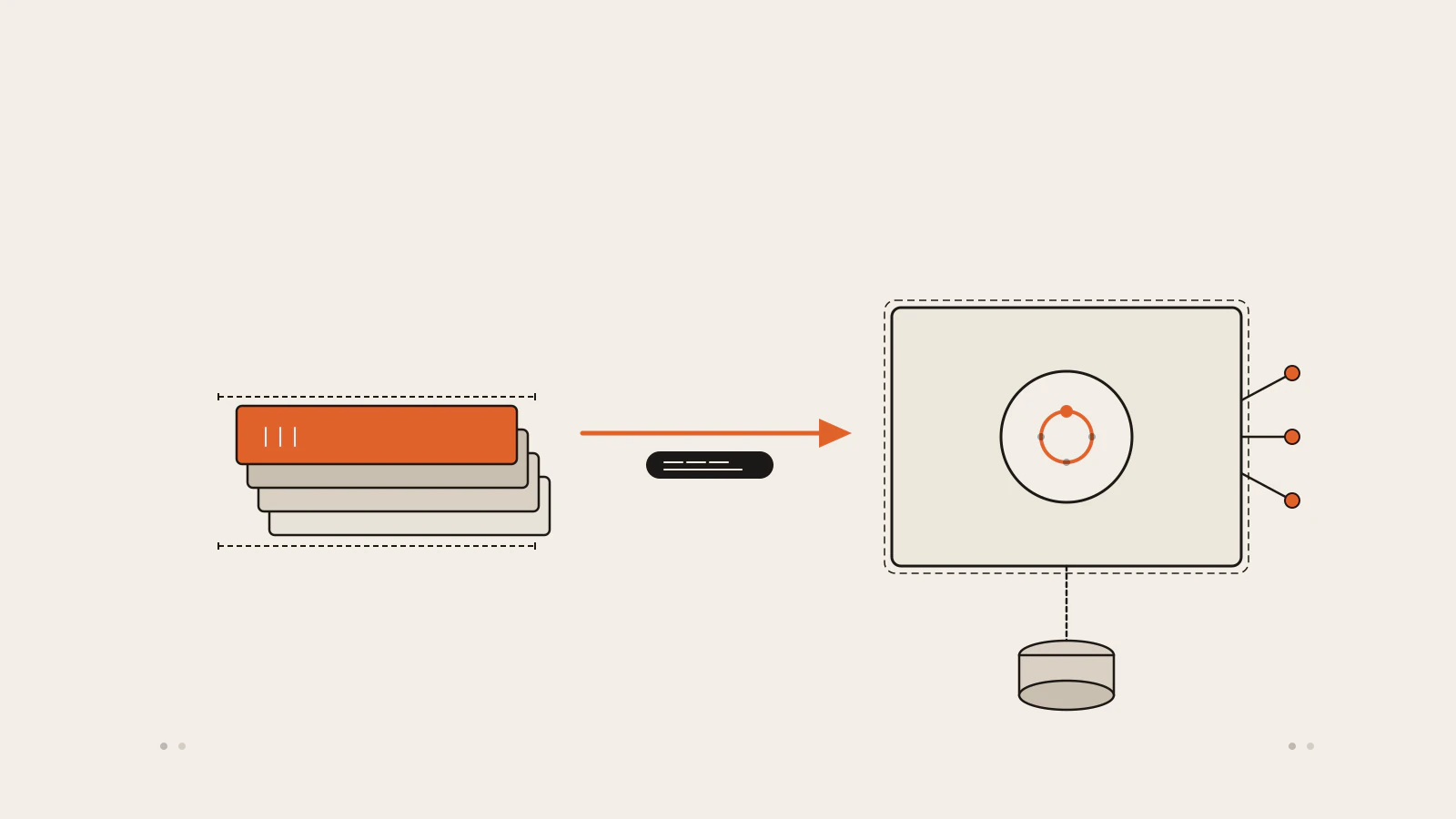
You’ve probably heard “it works on my machine.” It’s not really a joke — it’s a real debugging story, and it usually happens because apps pick up the environment they run in: your Node version, the OS libraries your code links against without you realising it, the Python minor version a dependency quietly expects. On your machine those are set. On a colleague’s machine, on the CI server, or on production, something is different.
Docker’s answer is packaging. You ship the runtime alongside the app — not just the code, but the exact environment it expects. On any machine with Docker installed, the app runs the same way.
This is the first part of a four-part Docker series. I’m going to walk through the mechanics: what an image actually is, how a container differs from it, and the commands you’ll reach for every single day.
Series: Docker for Developers — Part 1 of 4.
On this page
- The mental model: images are blueprints, containers are processes
- Pulling an image: what actually gets downloaded
- Running a container: the flags that matter
- Keeping data alive: volumes and port mapping
- Your daily commands: ps, logs, stop, rm
- Where most beginners get stuck
- When Docker is worth the extra step
The mental model: images are blueprints, containers are processes
An image is an immutable, read-only package. It contains everything a piece of software needs to run: OS libraries, a runtime, app code, config files. You can’t modify a running image — you create a new one or add layers on top of an existing one.
A container is a running instance of an image. When you start a container, Docker creates a thin writable layer on top of the image’s read-only layers and starts a process inside it. The image doesn’t change. The container writes to its own layer, but none of those writes touch the underlying image.
The analogy that clicked for me: an image is like a class definition, and a container is an instance of that class. The class doesn’t run by itself — instances do. You can spin up and tear down instances without touching the class.
The same image can produce dozens of independent containers, all sharing the same base layers without copying them. That’s why containers start in seconds rather than minutes. They’re not duplicating an entire operating system — they’re reusing the same immutable layers, with the host kernel doing the heavy lifting.
This also explains why containers use far less memory than virtual machines. A VM bundles its own kernel. A container doesn’t — it talks directly to the host kernel through namespaces and control groups, which the kernel uses to isolate processes and limit their resource access.
Pulling an image: what actually gets downloaded
Images live in registries. The default is Docker Hub, a public registry. When you pull an image, Docker downloads its layers:
docker pull node:22-alpineYou’ll see output like this:
22-alpine: Pulling from library/node
579b34f0a95b: Pull complete
d11a451e6399: Pull complete
1c2214f9937c: Pull complete
Status: Downloaded newer image for node:22-alpine
Each line is one layer. Docker stores layers content-addressed and reuses them across images. If two images share a base layer — both built from node:22-alpine, say — Docker only downloads that layer once.
To list what you’ve pulled:
docker image lsREPOSITORY TAG IMAGE ID CREATED SIZE
node 22-alpine a1b2c3d4e5f6 2 weeks ago 72.9MBTAG tells you the version. When you don’t specify one, Docker defaults to latest, which tracks whatever the maintainer last pushed. That can change without warning. Pinning to a specific version like 22-alpine is better for anything you want to reproduce reliably.
To inspect a downloaded image layer by layer:
docker image history node:22-alpineThis shows each layer, the command that created it, and its size. If an image is larger than you expected, this is where you look first.
Running a container: the flags that matter
docker run creates and starts a container from an image. The flags you’ll use in almost every project:
docker run -d -p 3000:3000 --name my-api -e NODE_ENV=production node:22-alpine node index.jsBreaking that apart:
-d— detached mode. The container runs in the background. Without it, your terminal is attached to the container’s output and blocked until the container stops.-p 3000:3000— port mapping. The format ishost:container. The first number is the port on your machine; the second is the port inside the container. They don’t have to match —-p 8080:3000is perfectly valid.--name my-api— gives the container a human-readable name. Without it, Docker picks a random one likenaughty_turing. Named containers are far easier to reference in follow-up commands.-e NODE_ENV=production— passes an environment variable into the container.node:22-alpine— the image.node index.js— the command to run inside the container.
One more flag that’s especially useful when running one-off commands or scripts:
--rm— automatically removes the container when it exits. Without it, stopped containers accumulate and you have to clean them up manually.
For an interactive shell session inside a container:
docker run -it node:22-alpine sh-i keeps stdin open. -t allocates a pseudo-TTY. Together they give you a terminal inside the container. Exit with exit or Ctrl+D.
Check this before moving on
- You can explain the difference between
-p 3000:3000and-p 8080:3000 - You know that
-druns the container in the background and frees your terminal - You understand that
--rmremoves the container on exit but leaves the image intact
Keeping data alive: volumes and port mapping
Containers are ephemeral by design. When you stop a container and remove it, anything it wrote to its own filesystem is gone. That’s fine for stateless apps but not for databases or anything that generates files you want to keep.
Named volumes are the standard solution. A volume is storage that lives outside the container’s lifecycle:
docker volume create app-data
docker run -d -v app-data:/app/data my-image
-v app-data:/app/data mounts the app-data volume at /app/data inside the container. Files written there survive the container being removed. Start a new container with the same volume, and the data is still there.
For local development, you’ll often use a bind mount instead — mapping a directory from your machine into the container:
docker run -d -v ./src:/app/src my-imageChanges you make to ./src on your machine appear inside the container at /app/src immediately. Your editor writes files on the host; the running container picks them up. This is the standard approach for a dev setup where you want live code changes without rebuilding the image.
Port mapping you’ve already seen: -p host:container. The thing that trips people up: the port the container exposes internally and the port your machine answers on are independent. A container running on port 8080 inside can be reached on port 3000 on your host with -p 3000:8080. The numbers only need to match on the side where the connection is being made.
An image’s read-only layers instantiate into a container. Port mappings connect the container to the host network, and a named volume persists data outside the container’s lifecycle.
Your daily commands: ps, logs, stop, rm
Once containers are running, four commands handle most of what you’ll need day to day.
List running containers:
docker psCONTAINER ID IMAGE COMMAND CREATED STATUS PORTS NAMES
4bed76d3ad42 node:22-alpine "node index.js" 1 minute ago Up 1 minute 0.0.0.0:3000->3000/tcp my-apiAdd -a to see stopped containers too — stopped doesn’t mean removed:
docker ps -aRead a container’s output:
docker logs my-apiFollow in real time with -f:
docker logs -f my-apiThis is the container equivalent of tail -f. It’s particularly useful when a server starts, runs for a few seconds, and then crashes — you can see exactly what it printed before it died.
Stop a running container:
docker stop my-apiThis sends SIGTERM to the main process, giving it a chance to shut down cleanly. After a 10-second timeout, Docker sends SIGKILL. Use docker kill to skip straight to SIGKILL when you need to.
Remove a stopped container:
docker rm my-apidocker stop stops the process but keeps the container’s metadata and filesystem on disk. docker rm removes it. You can combine both steps:
docker rm -f my-apiThe -f flag forces removal even if the container is still running.
Where most beginners get stuck
The “container exited immediately” problem. A container runs until its main process exits. If the command you pass to docker run finishes in under a second, the container stops right away. A bare docker run my-image echo hi starts, prints “hi”, and stops. The fix is to make the main process long-running: a server that listens, a blocking script, or an interactive shell with -it.
Port already in use. If you try to bind a host port that something else is already using, Docker fails with address already in use. Either stop the conflicting process with lsof -i :<port>, or change the host port in -p.
Volumes and file permission mismatches. When you bind-mount a directory from a macOS or Linux host into a container running as a different user, the UIDs won’t match and the container process might not be able to write to the directory. For local development, running the container with -u $(id -u):$(id -g) makes it use your host user’s UID and GID, which usually resolves the mismatch.
Using latest anywhere that matters. The latest tag follows whatever the maintainer last pushed. It changes without warning between your dev machine and CI, or between CI and production. Always pin to a specific tag in environments you want to reproduce.
When Docker is worth the extra step
Docker adds a build step and some tooling overhead. It’s worth it when:
- Your app needs a specific runtime version that conflicts with what’s installed on the host — this is the original use case
- You’re building a REST API with Node.js and Express that needs consistent behaviour across dev, CI, and production
- You’re following a production-ready Express project structure and want the environment to match what actually runs in production
- You need a local database or service without installing it directly on your machine
- Your team keeps running into “works on my machine” problems
It’s less necessary when:
- You’re running a standalone script with no external dependencies
- You’re prototyping something that only runs on your machine, once
- The team has already standardised on the same runtime version through another tool
Understanding Node.js runtime fundamentals helps you make better decisions about what to containerise — knowing what the runtime does on its own clarifies exactly where Docker adds value and where it’s just overhead.
If you’re coming to Docker for the first time through a shared project, make sure you have a solid grip on Git basics first. Dockerfiles and .dockerignore files need to be committed and maintained like the rest of the codebase, and that workflow is easier when you’re comfortable with version control.
The image-to-container model is the foundation. Once that’s clear, everything else — writing Dockerfiles, composing multi-container setups, deploying to production — is just building on top of it.