Modern CSS Layouts: Flexbox vs Grid
I explain the core difference between CSS Flexbox and Grid, show when each one is the better choice, and cover how to use both in the same layout.
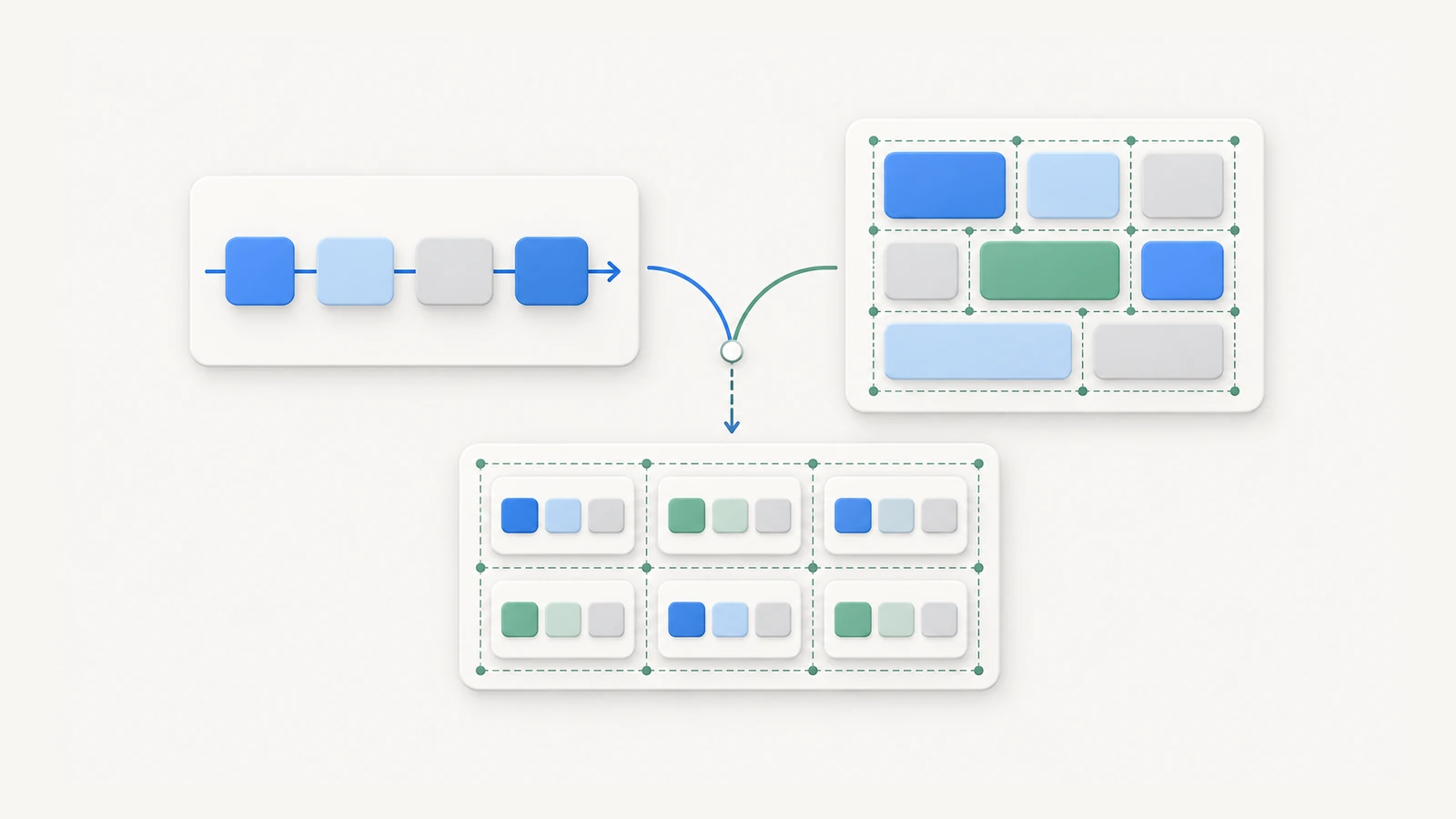
Most developers learn Flexbox first and reach for it by default. Grid feels like the more advanced option — saved for complex pages. That split is understandable: Flexbox came first, tutorials introduced it first, and it works well for many situations. But treating Grid as “Flexbox for hard layouts” leads to overengineered components and confused alignment rules.
The actual difference is about axes. Flexbox controls layout along one axis at a time — either a row or a column, but not both simultaneously. Grid controls layout on two axes at once — rows and columns together. Once that model is clear, the right tool for each situation becomes obvious.
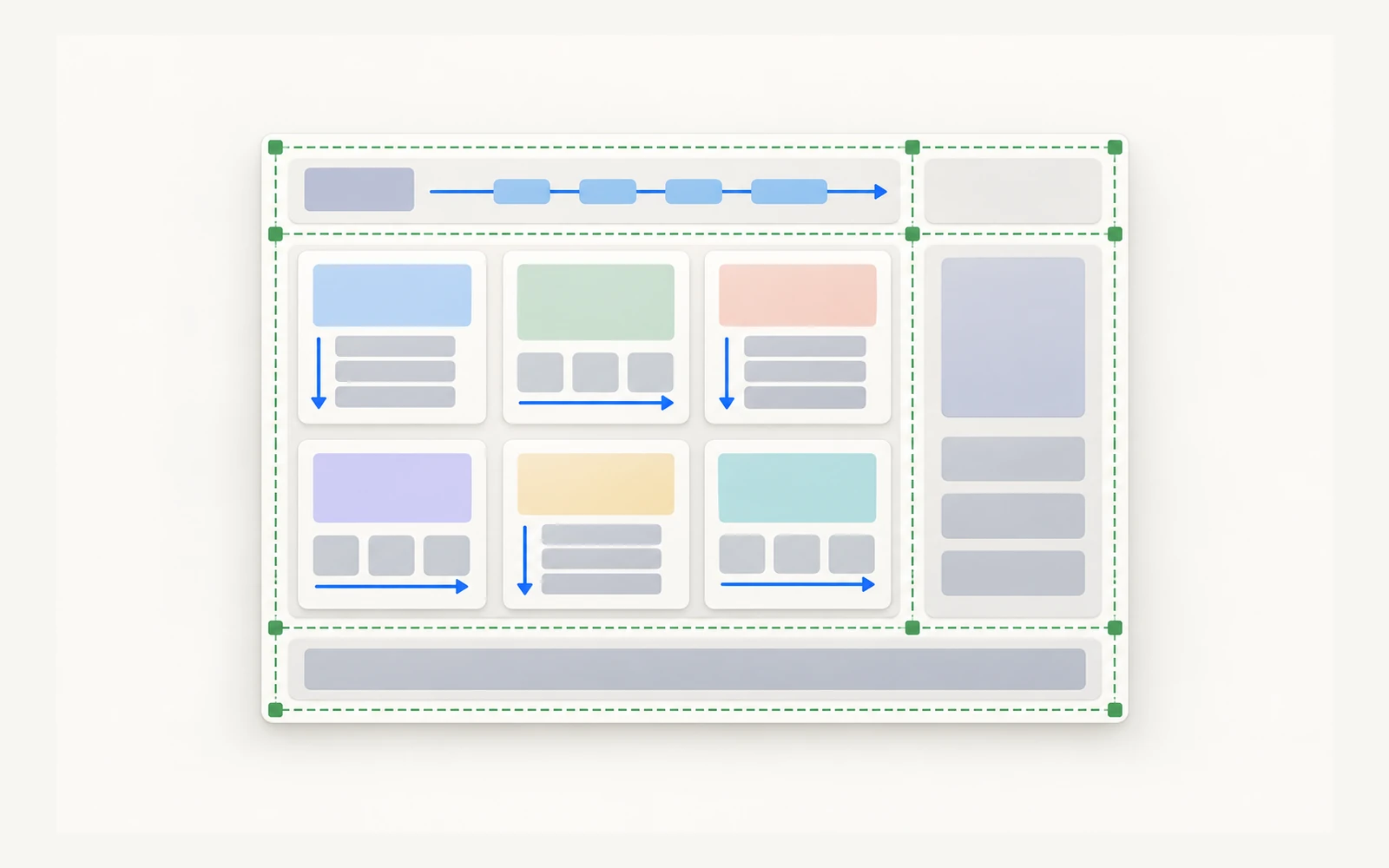
Quick answer: Use Flexbox when you are arranging items in a single row or column and want them to adjust naturally to the available space — navigation bars, button groups, card content. Use Grid when you need items to align across both rows and columns at once — page regions, card grids, dashboard panels. Most real layouts use both: Grid for the outer structure, Flexbox for the inner components.
On this page
- What Flexbox does
- What Grid does
- Comparing Flexbox and Grid side by side
- When to use Flexbox
- When to use Grid
- Using Flexbox and Grid together
- Common mistakes that cause confusion
- The practical rule
What Flexbox does
Flexbox — the Flexible Box Layout — works along one axis at a time. You pick a direction (row or column), and the browser arranges the children along that direction.
The key property is flex-direction:
.nav {
  display: flex;
  flex-direction: row; /* horizontal, left to right */
  gap: 16px;
}
Children can grow or shrink to fill the available space. You control that with flex-grow, flex-shrink, and flex-basis. The shorthand flex: 1 makes an item grow to fill the remaining space.
Alignment works on two conceptual lines: the main axis (the direction you chose) and the cross axis (perpendicular to it). justify-content controls alignment along the main axis. align-items controls alignment along the cross axis.
.nav {
  display: flex;
  justify-content: space-between; /* spread items along the row */
  align-items: center;            /* center items vertically */
}
This is the entire mental model of Flexbox: one direction at a time, with control over how items grow and how they align.
Flexbox is a flow model. The browser decides positions based on the content size and the available space. You guide that flow — you do not define fixed coordinates.
Before you continue: Open any component you have built recently — a navigation bar, a button row, or a card. How many of them arrange items in exactly one direction? Those are Flexbox candidates.
What Grid does
CSS Grid works on two axes simultaneously. You define columns and rows explicitly, and items are placed into the resulting cells.
.page {
  display: grid;
  grid-template-columns: 240px 1fr;
  grid-template-rows: auto 1fr auto;
  gap: 16px;
}
This creates a two-column layout: a fixed 240px sidebar and a flexible main area. The three rows are a header that is as tall as its content, a flexible middle row, and a footer that is as tall as its content.
Grid is a placement model. You define the structure first, then items fill it. Items can span multiple rows or columns:
.header {
  grid-column: 1 / -1; /* span all columns */
}

.sidebar {
  grid-column: 1;
  grid-row: 2;
}

.main {
  grid-column: 2;
  grid-row: 2;
}
The named-areas syntax is often clearer for page-level structures:
.page {
  display: grid;
  grid-template-areas:
    "header header"
    "sidebar main"
    "footer footer";
  grid-template-columns: 240px 1fr;
  grid-template-rows: auto 1fr auto;
}

.header  { grid-area: header; }
.sidebar { grid-area: sidebar; }
.main    { grid-area: main; }
.footer  { grid-area: footer; }
Reading grid-template-areas tells you exactly what the layout looks like without opening the browser. Each quoted string is one row; each word is one column cell.
If you use semantic HTML elements like <header>, <main>, and <footer> — covered in the HTML Semantic Elements post — they map directly and cleanly onto Grid areas.
Check this before moving on
- You can explain the difference between the main axis and the cross axis in Flexbox
- You understand that Grid defines rows and columns before placing items into them
- You know that
justify-contentin Flexbox controls alignment along theflex-directiondirection - You know that a Grid item can span multiple columns or rows using
grid-columnandgrid-row
Comparing Flexbox and Grid side by side
| Flexbox | Grid | |
|---|---|---|
| Axes | One axis at a time (row or column) | Two axes simultaneously (rows and columns) |
| Mental model | Flow: items adjust to available space | Placement: structure is defined first |
| Direction control | flex-direction: row or column |
Both axes always active |
| Item wrapping | Optional — flex-wrap: wrap |
Controlled by the grid template |
| Gaps | gap |
gap (same property, same syntax) |
| Alignment | justify-content / align-items |
justify-items / align-items and more |
| Named areas | Not available | grid-template-areas |
| Best for | Components in one direction | Two-dimensional layouts |
Both support the same gap property for spacing. Both support the same alignment keywords. The difference is not complexity — it is dimension.
When to use Flexbox
Flexbox is the right choice when items flow in one direction and need to fill available space naturally.
Good Flexbox use cases:
- Navigation bar: links arranged in a row, spaced apart, centered vertically.
- Button group: two or three buttons side by side with consistent spacing.
- Card internal layout: an icon and a label next to each other, a description below, a footer at the bottom.
- Centered element: centering a single item both horizontally and vertically.
- Tag list: a row of label chips that wraps when the container is narrow.
/* Navigation bar */
.nav {
  display: flex;
  flex-direction: row;
  align-items: center;
  justify-content: space-between;
  gap: 24px;
}

/* Card internal layout — stacks content vertically */
.card {
  display: flex;
  flex-direction: column;
  gap: 12px;
}

/* Push the card footer to the bottom */
.card-footer {
  margin-top: auto;
}
The signal that Flexbox is the right tool: you can describe the layout as “items in a row” or “items in a column” and that description captures the whole thing.
Try this
- Find a navigation bar or button group in a project you are working on.
- Apply
display: flexandalign-items: centerto the container.- Remove per-item margins and replace them with a single
gapon the container.Expected result: The items align to the center of the container without explicit height calculations, and spacing is consistent without margin rules on each child.
When to use Grid
Grid is the right choice when layout needs to control both rows and columns, or when items should align with one another across different rows.
Good Grid use cases:
- Page layout: header, sidebar, main content, and footer positioned as distinct named regions.
- Card grid: multiple cards in a responsive grid where all cards in the same row share a height.
- Dashboard panel: widgets arranged in a defined column-and-row structure.
- Form layout: labels and inputs aligned across both columns consistently.
- Image gallery: a mosaic or uniform grid where items span different numbers of cells.
/* Responsive card grid — no media queries needed */
.card-grid {
  display: grid;
  grid-template-columns: repeat(auto-fill, minmax(280px, 1fr));
  gap: 24px;
}

/* Single-column page layout that gains a sidebar at wider viewports */
.page-layout {
  display: grid;
  grid-template-areas:
    "header"
    "main"
    "footer";
  grid-template-rows: auto 1fr auto;
  min-height: 100vh;
}

@media (min-width: 768px) {
  .page-layout {
    grid-template-areas:
      "header header"
      "sidebar main"
      "footer footer";
    grid-template-columns: 240px 1fr;
  }
}
The repeat(auto-fill, minmax(280px, 1fr)) pattern is one of the most practical Grid idioms. It creates as many columns as fit, each at least 280px wide, without a single media query.
The signal that Grid is the right tool: you find yourself writing display: flex; flex-wrap: wrap and then fighting with item widths to make rows align consistently. Grid resolves that immediately.
| Your situation | Better choice | Reason |
|---|---|---|
| Items in one row or column | Flexbox | Flow model handles space distribution naturally |
| Items must align across rows | Grid | Row alignment is automatic by design |
| Card grid with consistent row heights | Grid | Items in the same row share the row height |
| Centering a single item | Flexbox | align-items: center; justify-content: center is direct |
| Two-column page with a sidebar | Grid | Named areas make the structure readable |
| Wrapping tag list | Flexbox | Items flow and wrap as content grows |
Using Flexbox and Grid together
Flexbox and Grid are not alternatives — they are layers. Most real layouts use both.
A common pattern:
/* Grid defines the outer page structure */
.page {
  display: grid;
  grid-template-areas:
    "header"
    "main"
    "footer";
  grid-template-rows: auto 1fr auto;
  min-height: 100vh;
}

/* Flexbox handles the header's internal layout */
.header {
  grid-area: header;
  display: flex;
  align-items: center;
  justify-content: space-between;
  padding: 0 24px;
  height: 64px;
}

/* Grid arranges cards in the main region */
.main {
  grid-area: main;
  display: grid;
  grid-template-columns: repeat(auto-fill, minmax(280px, 1fr));
  gap: 24px;
  padding: 24px;
  align-content: start;
}

/* Flexbox handles each card's internal content */
.card {
  display: flex;
  flex-direction: column;
  gap: 12px;
}
Here, Grid controls the page skeleton and the card arrangement. Flexbox controls the header bar and each card’s internal content. Neither competes with the other — they operate at different levels of the element tree.
Why add align-content: start to the card grid?
Without align-content: start, a Grid container with min-height or an explicit row height distributes the remaining vertical space between rows. Adding align-content: start packs the rows to the top, which is the expected behaviour for a card grid that does not need to stretch to fill the page. Leave it out only when you want the rows to spread evenly across the full container height.
Common mistakes that cause confusion
Building a grid with flex-wrap. When you write flex-wrap: wrap and fix item widths to create rows, you are approximating a grid manually. Grid does this automatically and aligns items across rows correctly. The repeat(auto-fill, minmax()) pattern is almost always cleaner and requires fewer rules.
Using Grid for a single row of items. A one-dimensional layout does not need two-dimensional control. A horizontal list of navigation links or a row of buttons is Flexbox territory. Grid adds properties you do not need and removes the natural flow behaviour you do need.
Applying display: grid to the <body> element. Grid on <body> affects every direct child — the header, main, any modal overlay, and every fixed-position element. The grid template has to account for all of them, which becomes fragile when content changes. Use a dedicated layout wrapper with known direct children instead.
Mixing up justify-content between Flexbox and Grid. In Flexbox, justify-content aligns items along the main axis — useful every day. In Grid, justify-content aligns the grid columns within the container when the total column width is less than the container width, which is rare in practice. The more common Grid alignment properties are justify-items and align-items. The names are similar; the targets are different.
Using width where flex-basis belongs. In a Flexbox container, flex-basis controls the starting size of an item before grow and shrink apply. Using width works in many row-direction layouts, but flex-basis is semantically correct and behaves more predictably when flex-direction is column.
| Mistake | Why it is a problem | Better approach |
|---|---|---|
flex-wrap to fake a grid |
Row heights are uneven; item alignment breaks | Use Grid with repeat(auto-fill, minmax()) |
| Grid on a single-row component | Unnecessary complexity; flow behaviour is lost | Use Flexbox |
display: grid on <body> |
Every child becomes a grid item, including overlays | Use a dedicated layout wrapper |
width on flex items |
Does not respect flex-direction: column properly |
Use flex-basis |
The practical rule
Flexbox is for one-dimensional layout. Grid is for two-dimensional layout.
The clearest heuristic: if your items live in one direction — a row of buttons, a vertical stack of form fields, a horizontal nav bar — use Flexbox. If items need to align across both rows and columns — a card grid, a page skeleton, a dashboard — use Grid.
When the right choice is not obvious, start with Grid for the outer container and Flexbox for the inner components. That split handles most real page structures cleanly and keeps the two concerns separate.
A practical next step: open the page layout file in your current project. Identify the elements that define large regions (header, sidebar, main, footer) and switch them to Grid with grid-template-areas. Then identify the components that arrange items in one direction (nav, button rows, card content) and switch those to Flexbox. Run the browser — the layout should look the same, but the rules are now clearer and alignment is more predictable.