HTML Semantic Elements Every Developer Should Know
I cover the HTML semantic elements that replace generic divs, explain when to use each one, and show how they improve accessibility and page structure.
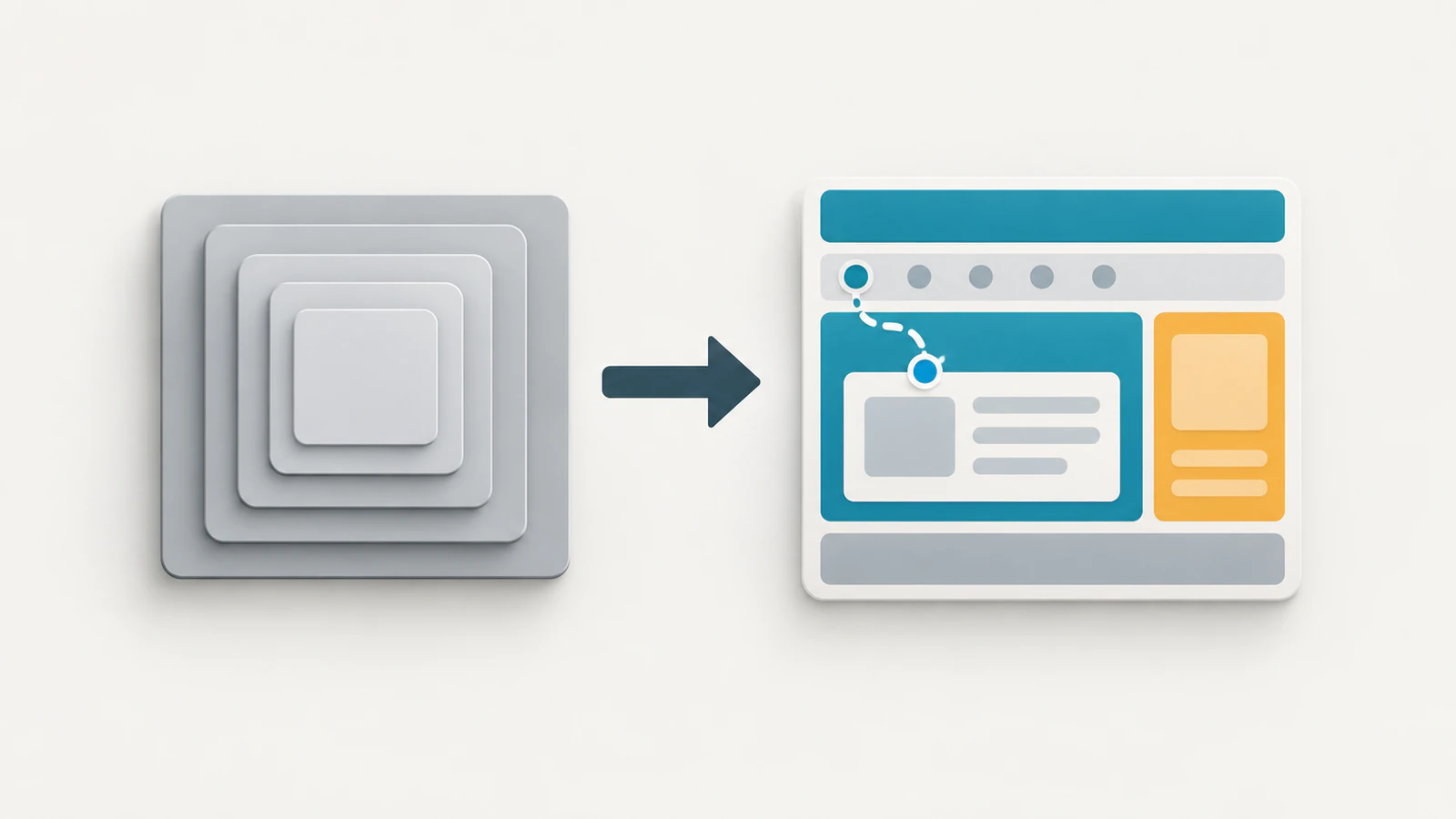
Most web pages are built almost entirely out of <div> and <span>. The page works, the CSS looks fine, and nobody complains. But the browser, screen readers, and search engines get almost no information about what each section actually represents.
Semantic HTML fixes that. Instead of wrapping everything in a generic container, you pick the element that describes the content’s purpose. The markup becomes easier to read, assistive technology can navigate it properly, and search engines understand the page structure without guessing.
Quick answer: HTML has roughly a dozen semantic elements that cover the structure of nearly any web page. The most useful ones are
<header>,<nav>,<main>,<footer>,<article>,<section>,<aside>,<figure>,<time>, and<details>. Each one tells the browser what a piece of content is, not just how it looks. Replacing a<div>with the correct semantic element takes no extra CSS and often improves accessibility immediately.
On this page
- What “semantic” actually means in HTML
- Structural elements that define the page layout
- Content grouping: article, section, and aside
- Smaller semantic elements that most developers skip
- Common mistakes that weaken semantic HTML
- Use the right element instead of guessing with a div
What “semantic” actually means in HTML
A semantic element communicates the meaning of its content to the browser. A <div> says nothing — it is a generic container with no built-in meaning. A <nav> says “this block contains navigation links.” A <time> says “this text represents a date or time.”
The practical effect shows up in three places:
- Accessibility. Screen readers use semantic elements as landmarks. A user can jump directly to
<main>, skip past<nav>, or find<footer>without scrolling through every element on the page. A<div>with a class name gives them nothing to work with. - Search engines. Crawlers use semantic structure to understand which part of the page is the primary content, which part is navigation, and which part is supplementary. The HTML specification defines these roles explicitly.
- Developer experience. Semantic markup is easier to read in source code. When you see
<article>inside<main>, you know the page structure at a glance. A stack of nested<div>elements with class names likecontainer,wrapper, andinner-wrapperdoes not communicate that structure as quickly.
Before you continue: Open any page you have built recently. Count the
<div>elements in the body. How many of them could be replaced with a specific semantic element?
Structural elements that define the page layout
These four elements form the outer skeleton of most web pages. Each one maps to an ARIA landmark role automatically, which means screen readers recognise them without any extra attributes.
<header> — introductory content for a page or section
The <header> element contains introductory content. On most sites, the top-level <header> holds the logo, site title, and primary navigation.
<header>
  <h1>Soumitra Blog</h1>
  <nav>
    <a href="/blogs">Blogs</a>
    <a href="/about">About</a>
  </nav>
</header>
A page can have multiple <header> elements. An <article> can have its own <header> for the title and metadata. The rule is that a <header> always belongs to its nearest sectioning ancestor.
<nav> — a block of navigation links
Use <nav> for the primary navigation blocks on the page — the site menu, a table of contents, or a breadcrumb trail. Do not wrap every group of links in a <nav>. A list of links in a footer or a blogroll in a sidebar does not always need one.
The HTML spec says: “Not all groups of links on a page need to be in a nav element — the element is primarily intended for sections that consist of major navigation blocks.”
<main> — the primary content area
There should be exactly one <main> element per page. It wraps the content that is unique to that page and excludes site-wide repeated elements like the header, footer, and sidebar navigation.
<body>
  <header><!-- site header --></header>
  <main>
    <article>
      <h2>HTML Semantic Elements</h2>
      <p>The content of the article goes here.</p>
    </article>
  </main>
  <footer><!-- site footer --></footer>
</body>
Screen readers offer a “skip to main content” shortcut that depends on <main> being present. Without it, keyboard users must tab through every navigation link to reach the content.
<footer> — closing content for a page or section
The <footer> typically holds copyright notices, contact links, and secondary navigation. Like <header>, it can appear inside an <article> or <section> to close that specific block.
Try this
- Open your most recent project and find the top-level layout file (the one that wraps every page).
- Check whether it uses
<header>,<nav>,<main>, and<footer>— or just<div>elements with class names.- If it uses only
<div>, replace them with the correct semantic elements. Do not change any CSS class names yet.Expected result: The page should look identical. The browser applies no default visual styling to these elements that would break your layout. But if you inspect the accessibility tree in DevTools (Elements panel → Accessibility tab), you will now see named landmarks where there were none before.
Content grouping: article, section, and aside
These three elements describe how content relates to the rest of the page.
<article> represents a self-contained piece of content that makes sense on its own. A blog post, a news story, a forum comment, or a product card all qualify. The test: if you pulled the content out of the page and put it on a different site, would it still make sense? If yes, it is an <article>.
<section> groups related content under a common theme. It almost always has a heading. Use <section> when the content belongs together but is not self-contained enough to be an <article>. A chapter within a long page, a group of settings in a form, or a “Features” block on a landing page are good uses.
<aside> contains content that is related to the surrounding content but could be removed without affecting the main flow. Sidebars, pull quotes, related links, and glossary terms are typical uses.
| Element | Use when | Example |
|---|---|---|
<article> |
The content is self-contained and independently meaningful | A blog post, a comment, a product card |
<section> |
The content groups related items under a heading | A chapter, a settings group, a feature list |
<aside> |
The content is supplementary and could be removed | A sidebar, a pull quote, related links |
A common pattern combines all three:
<main>
  <article>
    <h2>HTML Semantic Elements</h2>
    <section>
      <h3>Structural elements</h3>
      <p>Header, nav, main, and footer define the page skeleton.</p>
    </section>
    <section>
      <h3>Content grouping</h3>
      <p>Article, section, and aside describe how content relates.</p>
    </section>
  </article>
  <aside>
    <h2>Related posts</h2>
    <ul>
      <li><a href="/blogs/how-the-web-works">How the Web Works</a></li>
    </ul>
  </aside>
</main>
Smaller semantic elements that most developers skip
Beyond the structural landmarks, HTML offers several inline and embedded semantic elements that add meaning without changing layout.
<figure> and <figcaption> wrap a self-contained illustration, diagram, code listing, or image together with its caption. This is better than a bare <img> followed by a <p> because the browser understands the caption belongs to the image.
<figure>
  <img src="/images/semantic-layout.png"
       alt="Page layout showing header, nav, main with article and aside, and footer" />
  <figcaption>A typical semantic page structure.</figcaption>
</figure>
<time> marks up a date or time value with a machine-readable datetime attribute. Browsers and search engines can parse it reliably even if the visible text uses a casual format.
<p>Published on <time datetime="2026-09-05">September 5, 2026</time></p><mark> highlights text that is relevant in a specific context, like a search result match. It is not the same as <strong> (importance) or <em> (emphasis).
<details> and <summary> create a native disclosure widget — a collapsible section — without any JavaScript. The <summary> element is the clickable label.
<details>
  <summary>Why does semantic HTML matter for SEO?</summary>
  <p>Search engines use the document structure to identify the primary content,
     navigation, and supplementary sections. Semantic elements provide that
     structure directly in the markup.</p>
</details>
<address> marks up contact information for the nearest <article> or <body>. It does not mean a postal address — it means the contact details of the author or owner.
Check this before moving on
- You can explain the difference between
<article>and<section> - You know that
<main>should appear exactly once per page - You understand that
<figure>links an image to its caption semantically, not just visually - You know that
<details>creates a collapsible section without JavaScript
Common mistakes that weaken semantic HTML
Wrapping everything in <section>. Some developers replace every <div> with <section>, thinking more semantic elements means better HTML. A <section> without a heading or a clear grouping purpose is no better than a <div>. The HTML spec says: “The section element is not a generic container element. When an element is needed only for styling purposes or as a convenience for scripting, authors are encouraged to use the div element instead.”
Using <article> for non-self-contained content. A sidebar widget or a promotional banner is not an <article>. If the content does not make sense removed from the page, a <div> or <section> is more accurate.
Nesting <main> inside <main>. There must be only one visible <main> element per page. Nesting or duplicating it confuses screen readers.
Skipping <nav> for the primary navigation. If the site menu is a <div> with a nav class name, screen readers do not recognise it as a navigation landmark. The class name is for CSS. The element is for meaning.
Using <header> and <footer> only at the page level. Both elements are valid inside <article> and <section> too. An article header with the title and date is legitimate and helps assistive technology understand the content structure.
| Mistake | Why it is a problem | Better approach |
|---|---|---|
<section> without a heading |
Loses its grouping purpose | Use <div> for styling-only wrappers |
<article> for a banner |
Misrepresents the content’s independence | Use <div> or <aside> |
Multiple <main> elements |
Confuses landmark navigation | Keep exactly one <main> per page |
<div class="nav"> for site menu |
Screen readers miss the landmark | Use <nav> directly |
Use the right element instead of guessing with a div
The decision is straightforward: before reaching for a <div>, ask what the content is. If it is navigation, use <nav>. If it is the primary content, use <main>. If it is a self-contained post, use <article>. If it is a group of related content with a heading, use <section>. If it does not fit any semantic element, a <div> is the correct choice — it exists specifically for cases where no semantic meaning applies.
You do not need to memorise every element at once. Start with the four structural landmarks (<header>, <nav>, <main>, <footer>), add <article> and <section> for content grouping, and reach for <figure>, <time>, and <details> when they fit. That covers most pages.
The practical next step: pick one page in a current project and replace its generic containers with the correct semantic elements. Run a screen reader or the Accessibility tab in Chrome DevTools to see the difference. The layout will not change. The structure that browsers and assistive technology see will improve immediately.