Handling Deep Links and App Links in React Native
I explain the two React Native deep linking approaches — custom URL schemes and HTTPS universal links — and show how to wire both into React Navigation.
The first time you send yourself a test link in an email and watch your app snap open on the phone, it feels like a small bit of magic. Then you open the same email on your laptop, tap the link, and the browser quietly reports that it doesn’t know what myapp:// means. Nothing opens.
That gap — between mobile and everywhere else — is the first deep link problem most developers hit. It points to a real decision: React Native gives you two entirely different approaches to deep linking, and they’re not interchangeable. Knowing which one to reach for before you start building saves a painful migration later.
Quick answer: Custom URL schemes (
myapp://) are the simplest setup — app config only, no server required — but they fail on desktop and give no fallback when the app isn’t installed. iOS Universal Links and Android App Links use standardhttps://URLs that work everywhere and fall back to your website. React Navigation handles both through the samelinkingprop configuration.
Series: Part 6 of 8 — React Native for React Developers. Start with Part 1: React Native for React Developers
On this page
- Two link types, one decision to make
- Custom URL schemes: the faster path in
- Wiring React Navigation to accept deep links
- iOS Universal Links and Android App Links
- Testing before you ship
- When getInitialURL returns null
- Pick your setup before the first user taps
Two link types, one decision to make
Every deep link starts with a URL. What matters is the scheme — the part before ://.
Custom URL schemes use a prefix you invent: myapp://, mycompany://, or anything that doesn’t conflict with an installed app. The operating system routes links with that prefix directly to your app without any server involvement. Simple.
Universal Links (iOS) and App Links (Android) use standard https:// links. They work because you prove to the OS that your app owns a specific domain by hosting a small verification file on that server. When a user taps an HTTPS link that matches your app’s domain, the OS checks whether the app is installed. If it is, the app opens. If not, the browser loads the website instead.
| Custom URL scheme | Universal / App Links | |
|---|---|---|
| Setup complexity | Low — app config only | Medium — app config + server file |
| Works on desktop | No — link is dead | Yes — falls back to website |
| App not installed | Dead end | Opens your website |
| Requires a server | No | Yes (one JSON verification file) |
| Example | myapp://order/42 |
https://myapp.com/order/42 |
The rule of thumb: custom schemes work well for internal tools, development testing, and prototyping. For any link you’d send to real users through email, SMS, a QR code, or the web, HTTPS links are the right choice.
Both approaches share the same foundation at the React Native level: the Linking module.
Custom URL schemes: the faster path in
On Expo, adding a custom scheme takes one line in app.json:
{
  "expo": {
    "scheme": "myapp"
  }
}
After making this change, rebuild the development client. The scheme only applies to standalone builds — it doesn’t work in Expo Go out of the box, which is something that catches developers off guard the first time.
On bare React Native, the quickest route is uri-scheme:
npx uri-scheme add myapp --ios
npx uri-scheme add myapp --android
This handles the boilerplate for both platforms: it adds a URL type to ios/MyApp/Info.plist and an intent filter to android/app/src/main/AndroidManifest.xml. If you prefer to do it manually, the Android change looks like this:
<intent-filter>
  <action android:name="android.intent.action.VIEW" />
  <category android:name="android.intent.category.DEFAULT" />
  <category android:name="android.intent.category.BROWSABLE" />
  <data android:scheme="myapp" />
</intent-filter>
One more step for bare iOS projects: you need to tell the React Native bridge to forward the URL into your app. Add this to AppDelegate.swift:
func application(
  _ app: UIApplication,
  open url: URL,
  options: [UIApplication.OpenURLOptionsKey: Any] = [:]
) -> Bool {
  return RCTLinkingManager.application(app, open: url, options: options)
}
With this in place, you can read incoming links directly using the Linking module:
import { useEffect } from 'react';
import { Linking } from 'react-native';

useEffect(() => {
  // Handles links when the app is already open (warm start)
  const subscription = Linking.addEventListener('url', ({ url }) => {
    console.log('Incoming link:', url);
  });

  // Handles the link that opened the app from a cold start
  Linking.getInitialURL().then((url) => {
    if (url) {
      console.log('App opened via link:', url);
    }
  });

  return () => subscription.remove();
}, []);
You rarely need to use this raw API directly. React Navigation’s linking prop wraps it for you — but it’s useful to know what’s happening underneath.
Wiring React Navigation to accept deep links
The navigation series post covers the NavigationContainer setup. Once that’s in place, adding deep link support means passing a linking prop:
import { NavigationContainer } from '@react-navigation/native';
import * as Linking from 'expo-linking';

const linking = {
  prefixes: [Linking.createURL('/')],
};

export default function App() {
  return (
    <NavigationContainer
      linking={linking}
      fallback={<Text>Loading...</Text>}
    >
      <RootNavigator />
    </NavigationContainer>
  );
}
Linking.createURL('/') from the expo-linking package generates the correct prefix for your environment. In Expo Go during development, that resolves to exp://127.0.0.1:8081. In a production build, it becomes your configured scheme like myapp://. This is the right call — hardcoding 'myapp://' will break Expo Go testing.
In bare React Native without Expo, use a plain string: prefixes: ['myapp://'].
To map specific URL paths to specific screens, add a config object:
const linking = {
  prefixes: ['myapp://', 'https://myapp.com'],
  config: {
    screens: {
      Home: '',
      Order: 'order/:orderId',
      Profile: 'user/:userId',
      Settings: 'settings',
    },
  },
};
With this setup, myapp://order/42 navigates directly to the Order screen with { orderId: '42' } in route.params. No manual URL parsing.
For nested navigators, mirror the nesting in your config object:
config: {
  screens: {
    Main: {
      screens: {
        HomeTab: '',
        ProfileTab: 'profile/:userId',
      },
    },
    Modal: 'modal/:type',
  },
},
Check this before moving on
- Your scheme is listed in the
prefixesarray — a missing prefix means deep links silently do nothing, with no error - You’re using
Linking.createURL('/')fromexpo-linkingif on Expo (not a hardcoded scheme string) - You rebuilt the dev client after adding the scheme (scheme changes do not apply via hot reload)
iOS Universal Links and Android App Links
The core idea is domain ownership verification. The OS won’t route an HTTPS link to your app unless you prove, at the server level, that your app and your domain belong to each other.
iOS Universal Links require two pieces:
First, add Associated Domains to your app config:
{
  "expo": {
    "ios": {
      "associatedDomains": ["applinks:myapp.com"]
    }
  }
}
Second, host an apple-app-site-association file at https://myapp.com/.well-known/apple-app-site-association. The file must return Content-Type: application/json and not require authentication:
{
  "applinks": {
    "apps": [],
    "details": [
      {
        "appID": "TEAMID.com.yourcompany.myapp",
        "paths": ["/order/*", "/profile/*"]
      }
    ]
  }
}
iOS downloads and caches this file when the app is installed (and periodically refreshes it in the background). If the file is missing, malformed, or unreachable, Universal Links silently stop working. The link opens in Safari instead, with no error message.
Android App Links work similarly. Add an intent filter with autoVerify:
{
  "expo": {
    "android": {
      "intentFilters": [
        {
          "action": "VIEW",
          "autoVerify": true,
          "data": [{ "scheme": "https", "host": "myapp.com" }],
          "category": ["BROWSABLE", "DEFAULT"]
        }
      ]
    }
  }
}
Then host a Digital Asset Links file at https://myapp.com/.well-known/assetlinks.json:
[{
  "relation": ["delegate_permission/common.handle_all_urls"],
  "target": {
    "namespace": "android_app",
    "package_name": "com.yourcompany.myapp",
    "sha256_cert_fingerprints": ["YOUR_SIGNING_KEY_SHA256"]
  }
}]
Android verifies this at install time and after each app update. Failed verification means the link opens the browser instead.
With both platforms configured, update your React Navigation prefixes to include the HTTPS domain alongside the custom scheme:
const linking = {
  prefixes: ['myapp://', 'https://myapp.com'],
  config: { screens: { ... } },
};
One URL works on mobile (opens the app), on desktop (opens the website), and handles the “app not installed” case gracefully — all from the same config.
Testing before you ship
Test deep links before every release using the platform’s native tooling. The important thing is to test both scenarios: when the app is already open (warm start, handled by addEventListener) and when the app is fully closed (cold start, handled by getInitialURL). They use different code paths and can fail independently.
iOS simulator:
xcrun simctl openurl booted "myapp://order/42"Android emulator or connected device:
adb shell am start -W -a android.intent.action.VIEW \
  -d "myapp://order/42" com.yourcompany.myapp
Cross-platform with uri-scheme:
npx uri-scheme open "myapp://order/42" --ios
npx uri-scheme open "myapp://order/42" --android
If you’re testing in Expo Go, the prefix is different from your production scheme. Use:
npx uri-scheme open "exp://127.0.0.1:8081/--/order/42" --iosThe /--/ separator tells Expo Go that everything after it is your deep link path. Forgetting this separator is a very common development-only bug.
When getInitialURL returns null
getInitialURL returning null is the most common deep link complaint I’ve seen. It resolves to the URL that opened the app from a cold start — or null if there was none. The catch is it can also return null when there genuinely was a URL, if the JavaScript engine finished loading before the native layer processed the link.
React Navigation’s linking prop handles this race condition internally, which is the main reason you shouldn’t call getInitialURL manually in parallel with React Navigation. Let the library own it.
Other failures that look mysterious but have clear fixes:
Android opens a new app instance for every deep link instead of routing to the correct screen. Fix: add android:launchMode="singleTask" to the MainActivity entry in AndroidManifest.xml. Without it, the OS spins up a fresh instance each time, bypassing your navigation state entirely.
Universal Links open Safari instead of the app. The association file wasn’t verified. Check that https://myapp.com/.well-known/apple-app-site-association is publicly accessible, returns the correct content type, and contains the right team ID and bundle identifier. Apple provides the AASA validator to help diagnose this.
Deep links work in development but not in production. The scheme used in Expo Go (exp://) differs from the production scheme (myapp://). If your prefixes only lists myapp://, Expo Go links won’t work — and vice versa. The Linking.createURL('/') helper handles this automatically.
Pick your setup before the first user taps
Deep linking isn’t a feature you can retrofit cleanly. Once a link is out in the world — in a welcome email, a share sheet, a push notification, a QR code — changing the scheme means every existing link breaks. Users with the old link get nothing.
The decision is about which failure mode you can live with. Custom URL schemes fail silently when the app isn’t installed and completely on desktop. HTTPS links require more setup upfront but handle every context a user might encounter.
My recommendation: register both. Configure the custom scheme first — it’s one line in app.json and gives you working deep links in minutes for development. Plan the HTTPS link verification before you ship. The React Navigation config is identical; you’re just adding a second entry to the prefixes array and hosting two small JSON files on your server.
The navigation post in this series gives a solid foundation if you’re still setting up your screen structure. If you already have that, the linking prop is where your navigation config and your deep link config come together — and once it’s wired, both link types work through the same screen mapping.
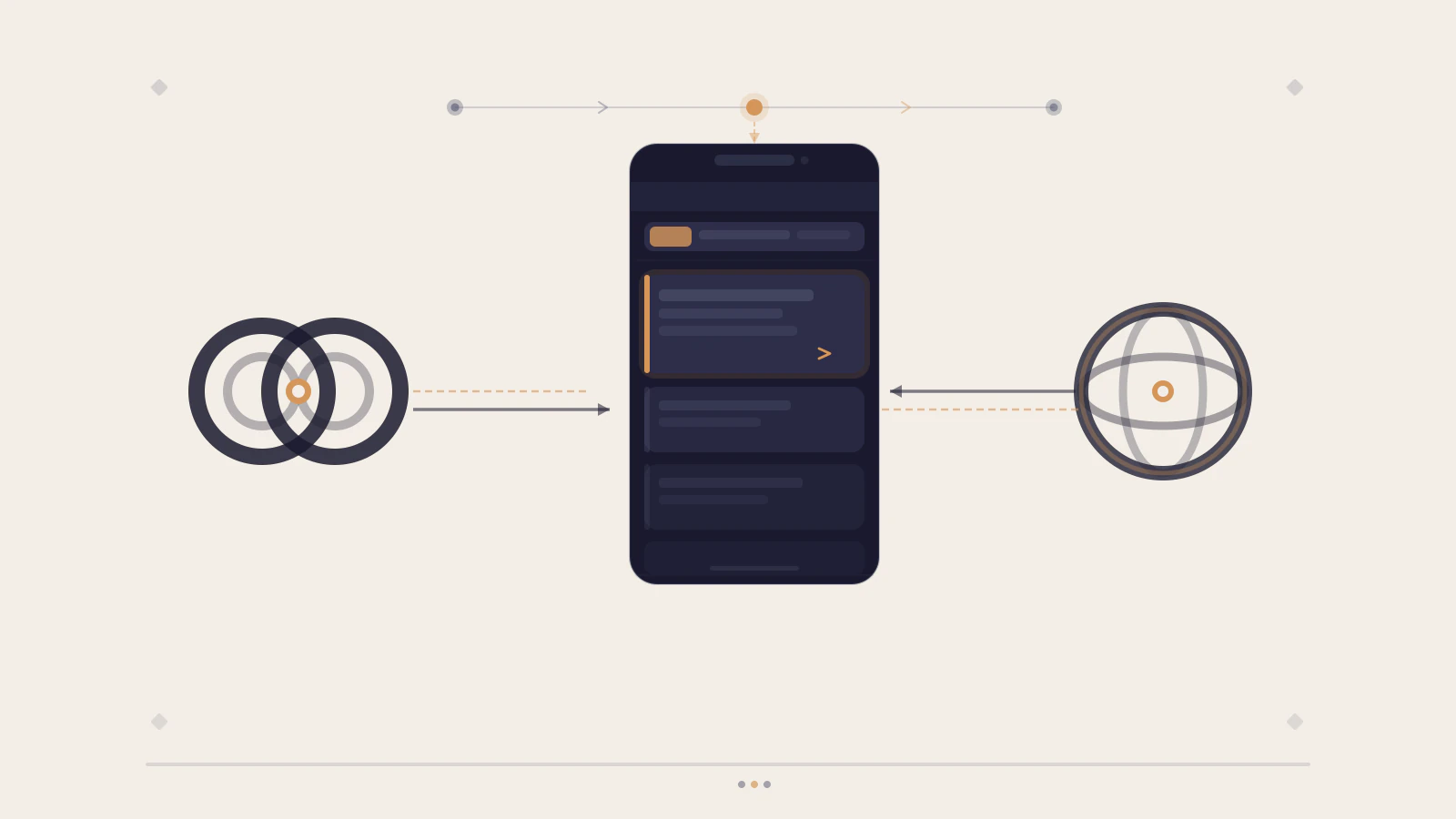
Two link types, one destination: both custom schemes and HTTPS links route into the same screen through the same React Navigation config.